Remove Objects from Photos
A trash can by the door, wires across the view, clutter in the corner. Tap each thing you want gone and say what it is — the AI erases it and fills in what was behind, while people and everything else stay exactly where they were.

Example
Photo to edit*
Usually 30–90 s · failed edits don't count
 123
1231Remove the power lines2Remove this pole3Remove this pole
- 1Upload a photo and tweak the options
- 2Tap “Generate” and wait 30–90 seconds
- 3Compare, download or keep editing
More real results
All made with this tool. Drag the line on each photo to compare.

 12
121Remove the black trash bin2Remove the green trash bin
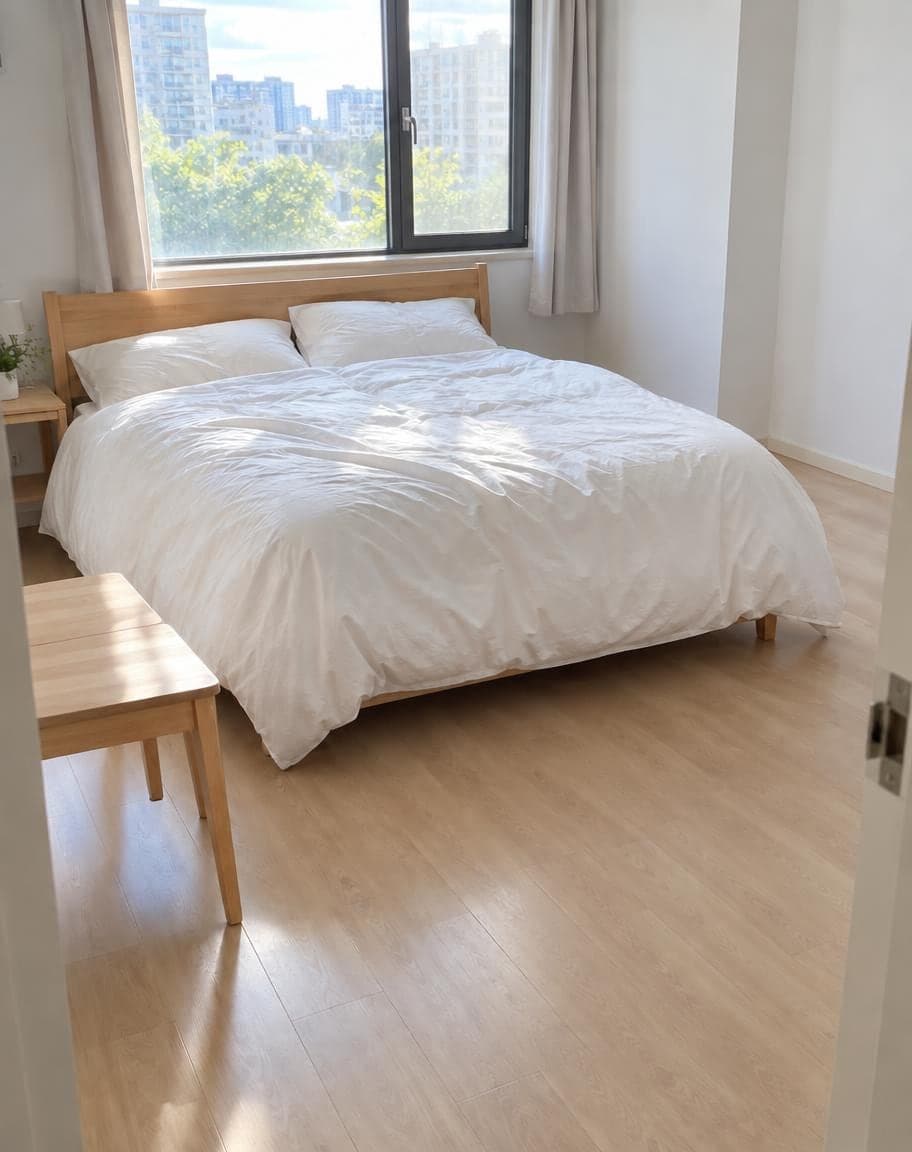
 123
1231Remove the pile of clothes on the chair2Remove the laundry basket3Remove the vacuum cleaner
What works best, and what it can't do
Works best
- Tap right on each thing you want gone and give it its own pin — up to 6.
- Name it in the pin: “Remove the trash can” works better than “remove this”.
- Bins, signs, cones, parked cars, power lines, cables, litter, clutter on tables and floors.
What it can't do
- Something covering part of a person: the hidden part of them is redrawn by AI and may not match exactly.
- Now and then a pin gets missed, most often a thin or large thing at the edge of the frame. Tap “Keep editing”, pin what's left and run it again.
- Clearing a whole crowd with 6 pins — Remove People from Photos finds everyone in the background for you.
More photo fixes
All tools
“Switch the background to cherry-blossom season, with petals drifting in the air”
Edit Photo with Text
Describe any edit in one sentence


Remove People from Photos
Erase tourists and clutter from the background

Fix Photo Lighting
Pro-level light, color and clarity in one tap


AI Portrait Retouch
Natural retouching that still looks like you
Remove Objects from Photos: FAQ
How do I remove an object from a photo?
Upload your photo, tap the object and write what to do — “Remove the trash can” — then tap Generate. Add a pin for each thing you want gone, up to 6. The AI erases them and fills in what was behind; everything else stays as it was.
What kinds of objects can it remove?
Anything you can point at: trash cans, signs, traffic cones, parked cars, power lines and poles, cables, litter, clutter on tables and floors. Things in front of sky, walls, grass or road fill in most naturally.
Will it remove people or change anything else?
Only the spots you pin are edited, so the people and the rest of the scene stay where they were. The numbered pins just show the AI where to look — they never appear in your result.
What if something is still there?
Tap “Keep editing” on your result, pin what's left and run it again. Thin or large things at the edge of the frame are the ones most often missed.
Can it remove people too?
Yes — pin them and write “Remove this person”. To clear a whole crowd at once, use Remove People from Photos, which finds everyone in the background for you.
Is it free?
Yes. You get 2 free edits every day — no sign-up and no credit card (free results carry a small watermark). Edits that fail don't count.
What happens to my photo?
It's stored privately and only used to make your edit. Only you can see it — in the browser you uploaded from, or in your account once you sign in — and we never sell your photos or use them to train AI models.
2 free edits every day. Need more? See pricing